A team meeting scheduler with one flat price.
Share booking links for client calls, demos and interviews. Route each booking to one available host, or check the whole panel when several people need to attend. $27/month for up to 5 members; $35/month for up to 10.
Start free trial15-day free trial · no credit card required
Bookings by team member
0illustrative · this week
Illustrative — your real numbers appear in Insights.
flat for up to 5
per-seat fees
bookings auto-assigned
Built for how you work
Flat $27/month for up to 5 — or $35/month for up to 10.
Choose Team 5 for up to 5 members or Team 10 for up to 10. Your monthly price stays the same while you stay within that plan's member limit. Larger teams can ask about a Custom plan.
Old way: Per-seat pricing balloons as the team grows — adding a new hire means another monthly charge.Round-robin and smart routing assign bookings automatically.
For a shared link, round-robin selects one available host with the fewest bookings that week. Weighted priority and routing forms give you other ways to assign bookings. Explore round-robin meeting scheduling.
Old way: Manually figuring out who should take each inbound booking wastes coordinator time.Team Insights show the full picture.
See bookings, no-shows, and peak hours across team members and booking links. When a meeting needs several hosts together, use panel scheduling instead of assigning it to one person.
Old way: No visibility into who's booked, who's overloaded, or how scheduling workload is distributed.How it works
Set up a shared team booking link
A team booking link belongs to a team you own. These are the steps SynqSlot actually takes, in order.
The owner creates a team
Dashboard → Team → create a team. You need a Team plan or the 15-day free trial. The person who creates it is the owner.
The owner invites teammates by email
Each invitation stays pending until it is accepted. While it is pending you can re-send it or copy the invite link, and you can withdraw it.
The teammate signs in with the invited address and accepts
An invitation belongs to the email address it was sent to. Signed in with a different account, the teammate is asked to switch. Pending members are never offered to invitees.
Each member connects a calendar and sets available hours
Google Calendar, Outlook / Microsoft 365, or Apple iCloud and other CalDAV calendars. For each connected account a member chooses whether it blocks availability and which one receives new events. A member with no connected calendar is treated as free, so connect before you share the link.
The owner creates a team booking link, then picks the mode and participants
Round-robin, priority, performance or panel — only accepted members can be selected.
Share the link; the invitee books
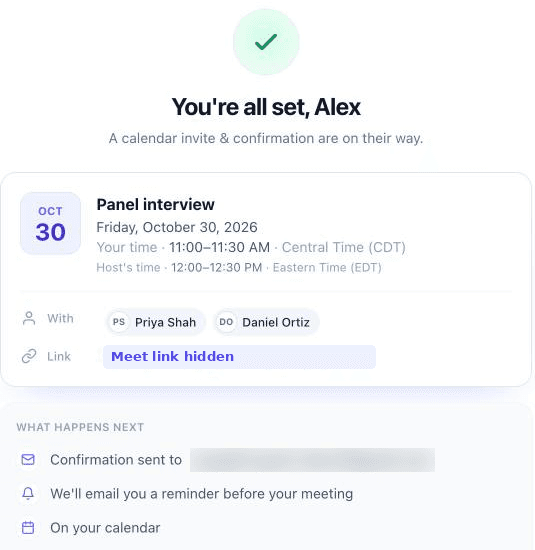
The invitee sees times in their own time zone and picks one. The booking is assigned according to the mode, the meeting is added to the host's calendar with the other participants invited, and confirmations go out.
Changes go through the reschedule and cancel links
Both links are in the confirmation. A round-robin booking keeps its assigned host, and the new time is checked against that person's calendar. A panel booking re-checks every required participant. Cancelling removes the calendar event and notifies the participants.
Pending invitations vs accepted members
The team members list labels each person, so you can see who is ready before you share a link.
Pending invite
- Invited by email but not yet accepted.
- Holds a seat from the moment the invitation is sent.
- Nothing of theirs is used: no calendar checks, no round-robin assignments, and they can't be picked for a panel.
- The owner can re-send the invitation, copy the invite link or withdraw it.
Accepted member
- Signed in with the invited address and accepted.
- Can be selected on team booking links, as a round-robin host or a panel participant.
- Their availability is checked only once they have connected a calendar and set their available hours.
Before you use a panel link
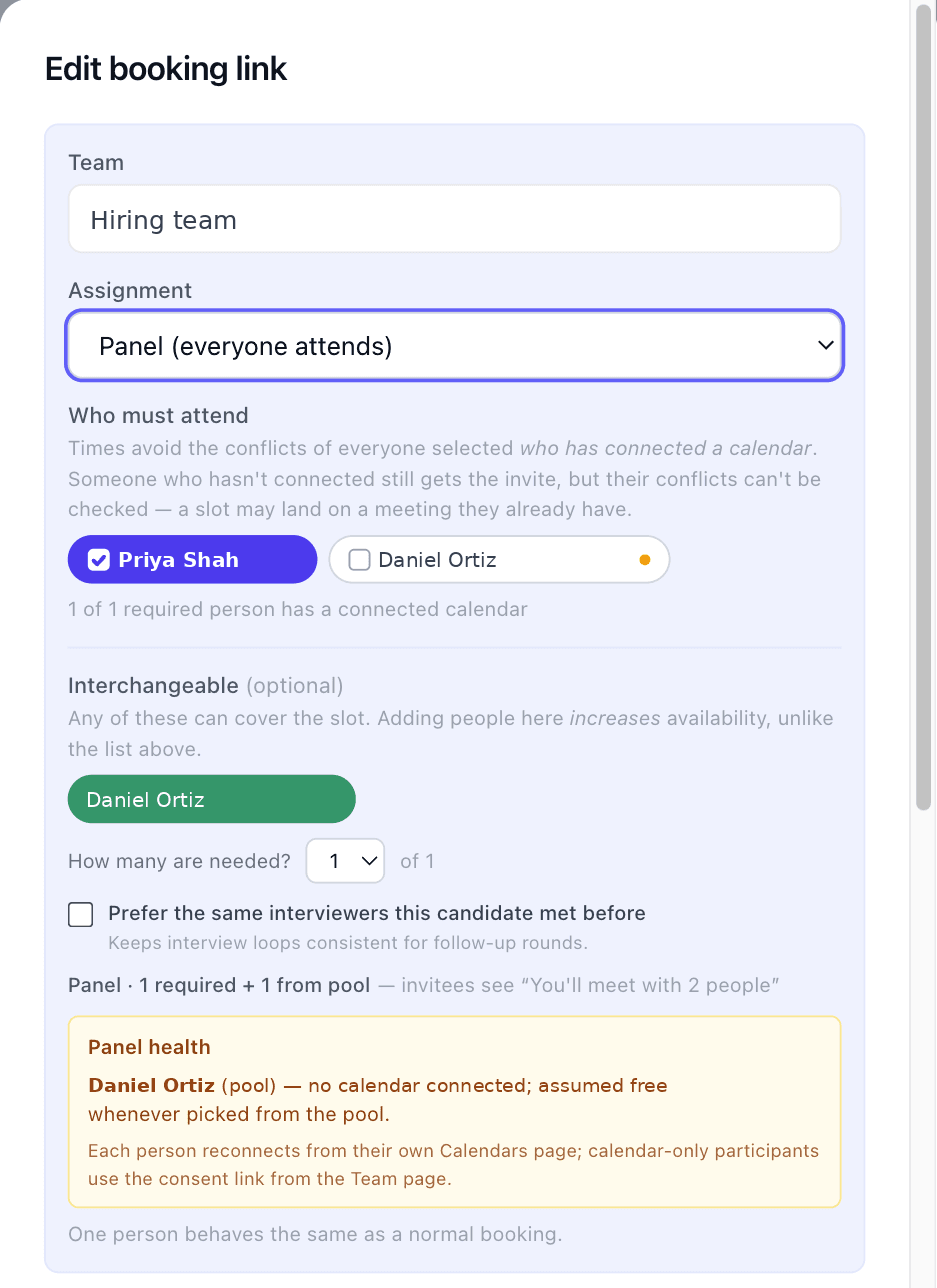
Each required interviewer must connect their calendar first. SynqSlot can only rule out times it can see: a required interviewer with no connected calendar (or one that needs reconnecting) is treated as free, so the link could offer a time they are actually busy. The booking link editor lists those interviewers and asks the owner to acknowledge the risk before the panel goes live. External calendar-only panelists are checked only after they share their calendar with the team.
Choose how a booking is assigned
The mode decides who attends and which times the invitee is offered.
Individual host
Who attends: One named person — the member's own one-on-one booking link (a personal link rather than a team link).
Times offered: Times that person is free.
Round-robin
Who attends: One available member is assigned: by default whoever has the fewest bookings that week. Priority (weights) and performance (outcome-based) are variants. See round-robin scheduling.
Times offered: A time at least one eligible member is free.
Panel
Who attends: Everyone marked required attends. See panel interview scheduling.
Times offered: Only times every required participant is free.
| Mode | Who attends | Times offered |
|---|---|---|
| Individual host | One named person — the member's own one-on-one booking link (a personal link rather than a team link). | Times that person is free. |
| Round-robin | One available member is assigned: by default whoever has the fewest bookings that week. Priority (weights) and performance (outcome-based) are variants. See round-robin scheduling. | A time at least one eligible member is free. |
| Panel | Everyone marked required attends. See panel interview scheduling. | Only times every required participant is free. |
Interchangeable pool (panels only). A panel can also list optional members and say how many of them are needed — for example any two of five engineers. A time is offered only when every required person and that many pool members are free.
Who can do what
- Owner: invites and removes members, edits team booking links, sets round-robin weights, and can transfer ownership or archive the team.
- Members: host bookings on the team's links, see their own team bookings, and can leave the team.
- The team's plan is the owner's subscription; members don't need their own.
How seats are counted
- Team 5: up to 5 people for $27/month. Team 10: up to 10 for $35/month. Larger teams can ask about Custom.
- The owner, accepted teammates and pending invitations all count. Accepting an invitation keeps the seat; withdrawing an invitation frees it. Calendar-only panelists (external interviewers who only lend a calendar) don't use a seat.
- Seats are counted across every team you own; one person on two teams uses one seat.
- You can't move to a smaller plan while more people are on your teams than it allows. See pricing.
Ready to get started?
Start your 15-day free trial — full access, no credit card required.